Frequently Asked Questions

MongoDB Backup & Recovery with N2WS

How can I configure a consistent backup for a MongoDB shard cluster using N2WS?

To configure a consistent backup for a MongoDB shard cluster with N2WS, you need to create a backup policy that includes all shard servers (preferably a secondary member of each replication set) and one config server. The MongoS server is used for the locking process but does not need to be included in the backup unless desired. You must enable backup scripts in the policy, increase the script timeout (e.g., to 4 minutes or more), and collect script output for visibility. Scripts for locking/unlocking the cluster are available for download and should be placed in the '/cpmdata/scripts' directory on the N2WS server. Ensure all SSH keys and configuration files are correctly set up. For detailed steps and scripts, see the original guide and download the scripts here. Note: You must thoroughly test the scripts in your environment before using them in production. Manual intervention may be required after recovery (see below for details).

What manual steps are required after recovering a MongoDB cluster from N2WS backups?

After recovering a MongoDB cluster using N2WS, you may encounter an 'old lock file' error because EBS snapshots are taken while the server is locked. MongoDB will refuse to start, assuming an unclean shutdown. To resolve this, manually remove the lock file on each shard server (e.g., sudo rm /data/mongod.lock) and restart MongoDB (sudo service mongodb start). Additionally, if you preserve the original server addresses (e.g., using Elastic IPs), the cluster will work without changes. If new addresses are used, update the config servers accordingly. Note: This manual step is required for consistent recovery and is not automated by N2WS.

Where can I find the scripts and configuration files for MongoDB cluster backup with N2WS?

The scripts for locking and unlocking a MongoDB shard cluster during backup are available for download at this link. You will also need the SSH Python library 'paramiko', which should be copied locally to your scripts folder. All scripts and configuration files should be placed in the '/cpmdata/scripts' directory on the N2WS server. Ensure all paths, addresses, ports, and credentials are correctly set in the configuration file (e.g., 'mongo_db_cluster_locker.cfg').

What are the limitations or risks when using custom scripts for MongoDB backup with N2WS?

The scripts provided for MongoDB cluster backup are given as-is, without warranties. You must thoroughly test them in your environment before using them in production. Manual intervention is required after recovery to remove lock files and restart MongoDB. If scripts or configurations are incorrect, backups or restores may fail. N2WS does not automate all aspects of MongoDB cluster recovery (e.g., Elastic IP reassignment or config server updates). Detailed limitations not publicly documented; ask sales or support for specifics.

Features & Capabilities

What integrations does N2WS offer for automation and monitoring?

N2WS provides integration options including a RESTful API for custom automation (e.g., user onboarding, backup management), CLI access for advanced workflows, and support for third-party monitoring tools such as Datadog, Splunk, and Bocada. These integrations enable enhanced observability, compliance tracking, and data management. For API documentation, see N2WS RESTful API documentation.

What are the key features of N2WS for backup and disaster recovery?

N2WS offers automated backup and recovery for AWS and Azure, near-instant recovery, immutable backups (air-gapped and tamper-proof), cross-cloud recovery, granular restore (file/folder/volume/environment), intelligent storage tiering (reducing long-term backup costs by up to 92%), custom disaster recovery retention policies, multi-tenancy for MSPs, and automated compliance reporting. Note: Some advanced features (e.g., cross-cloud recovery, multi-tenancy) may require additional configuration or licensing. Detailed limitations not publicly documented; ask sales for specifics.

Does N2WS support backup and recovery for both AWS and Azure environments?

Yes, N2WS supports backup and recovery for both Amazon Web Services (AWS) and Microsoft Azure environments. It provides a unified console for managing backups across AWS, Azure, and Wasabi, enabling cross-cloud recovery and centralized management. Note: Some features may be specific to AWS or Azure; check documentation for platform-specific capabilities.

Security & Compliance

What security and compliance certifications does N2WS have?

N2WS is independently certified for ISO/IEC 27001:2022 and is SOC compliant by inheritance, leveraging AWS and Azure compliance features. It also supports compliance with HIPAA, GDPR, FedRAMP, ITAR, and CJIS. For a copy of the ISO certificate, contact customer.success@n2ws.com. For more details, visit the N2WS Trust Center. Note: Some certifications are inherited from the underlying cloud provider; review your regulatory requirements for full compliance.

How does N2WS protect against ransomware and accidental deletion?

N2WS provides immutable, air-gapped backups that are tamper-proof and cannot be deleted or altered, protecting against ransomware and accidental deletion. Backups are encrypted end-to-end and can be isolated in separate disaster recovery accounts. Note: While immutable backups provide strong protection, no solution is immune to all attack vectors; regular testing and review of backup policies is recommended.

Implementation & Support

How long does it take to implement N2WS and what support is available?

N2WS implementations can be completed in as little as two weeks. Customers benefit from dedicated Customer Success Managers, onboarding calls, and extensive resources such as video tutorials, user guides, and a knowledge base. A 30-day free trial is available without a credit card. For installation instructions, see the N2WS install guide. Note: Implementation time may vary based on environment complexity and internal processes.

What technical documentation is available for N2WS users?

N2WS provides comprehensive technical documentation, including a user guide (User Guide), release notes, RESTful API documentation, upgrade guides, and IAM permission files. These resources cover deployment, configuration, management, and integration best practices. For all documentation, visit the N2WS documentation portal.

Competition & Comparison

How does N2WS compare to AWS Backup for MongoDB and other workloads?

N2WS offers several features not available in AWS Backup, including immutable backups, cross-cloud recovery (AWS and Azure), granular file/folder-level restore, custom disaster recovery retention policies, multi-tenancy for MSPs, and a RESTful API for automation. AWS Backup is limited to AWS environments, does not support immutable backups or granular restore, and requires Lambda scripting for automation. N2WS also provides cost optimization features like intelligent storage tiering. Note: AWS Backup may be preferred for organizations seeking basic backup within AWS only and with minimal automation needs.

Use Cases & Customer Proof

Who uses N2WS and what industries are represented in its case studies?

N2WS is used by over 1,000 organizations worldwide, including enterprises (Johnson & Johnson, Dyson, HP, Western Union), retail (Skechers, Dressbarn), public sector (City of Oakland, Bahrain Ministry), education (St. John's University), transportation (Deutsche Bahn), nonprofits (Best Friends Animal Society, Goodwill), healthcare (Philips, Merck), finance, and IT software companies. For more, see N2WS case studies. Note: Not all features are used by every customer; review case studies for specific use cases.

Can you share a specific success story of N2WS in action?

Yes. For example, Skechers standardized backup and recovery across a complex, multi-cloud IT estate, streamlining costs and enhancing data protection with N2WS. St. John's University eliminated legacy tape-based storage and achieved rapid recovery from accidental data deletion. For more details and additional stories, see the N2WS case studies page. Note: Results may vary based on environment and implementation.

EC2: MongoDB Shard Cluster Consistent Backup using EBS snapshots and N2WS Part II

Learn to configure backup for a MongoDB shard cluster in only a few minutes using N2WS Backup & Recovery for Amazon Web Services (AWS).
Share post:

Disclaimer: The scripts in this post are given as-is without any warranties`. Please consider them as guidelines. Please don’t use them in your production environment until thoroughly testing them and making sure the backup and recovery processes work correctly.

In the first part of this post, I presented a set of python scripts that lock and unlock a complete MongoDB shard cluster. So, using N2WS, configuring backup for such a cluster takes only a few minutes. Basically, we need a backup policy that will include all the shards of the cluster. Assuming the shards are actually replications sets, it needs to back up a secondary member of each set. Furthermore, the backup policy needs to include one config server. Typically, in production environments, there will be three, but since they’re all the same, only one is needed in the backup policy. The MongoS server is needed for the locking process, but doesn’t necessarily need to be included in the backup, since it is stateless, unless you want to include it.

First stage: Define the Policy
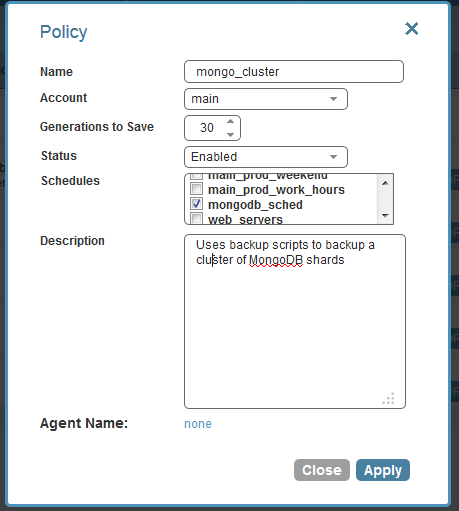
mongo cluster N2W policy

I defined a new policy named “mongodb_cluster,” and associated it with a schedule. I can configure any schedule I need.
N2W mongodb cluster backup targets

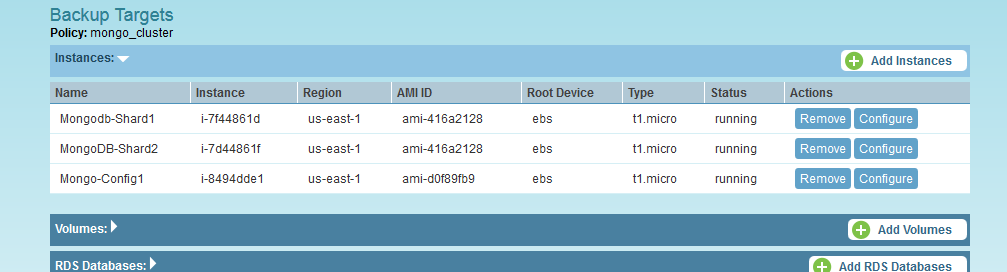
Then, when selecting backup targets, I chose a config server and the two shard servers in the policy. Since the shard locking happens in parallel, locking a larger number of shards should take approx. the same time.
N2W mongodb cluster policy options

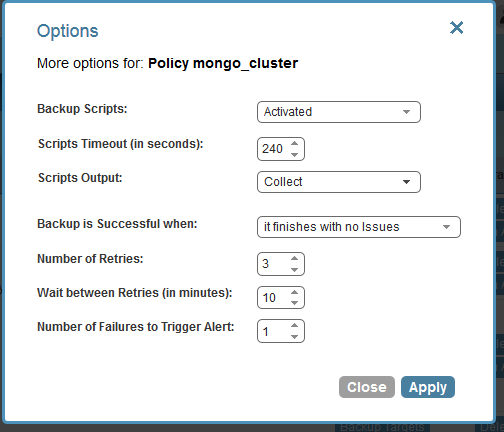
The last stage is to change the option of the policy (by clicking “More Options” :

Please note: I enabled backup scripts, increased the scripts timeout, since the locking (especially waiting for the load balancer to stop) may take some time. I chose 4 minutes; maybe even a larger value is needed. Furthermore, I chose to collect scripts output, which will give very good visibility of what the scripts are doing.

Setting the scripts

The scripts can be found here. To log in the N2WS Server, I need an SSH client with an option to copy over files. I use a Windows system, with putty and WinSCP, there are other tools available. I logged in as user “cpmuser” and copied the scripts to the folder “/cpmdata/scripts,” the names of the executables need to match “before_< policy name>,” “after_<policy name>” and the last script, which is an empty script that does nothing (but needs to be present), is called “complete_<policy name>.”

After copying the scripts (including the python module mongo_db_cluster_locker.py), I needed the SSH Python library “paramiko.” It is recommended to use it locally and to try to avoid actually installing anything on the N2WS Server, since at some stage, for an upgrade or some other reason, it will be required to terminate the instance and launch a new one. All the scripts and code that are stored in “/cpmdata/scripts” reside on the N2WS data volume, and will remain there even if the instance is terminated. So, for “paramiko” I copied the library locally to my scripts folder. I did the following:

  > cd /tmp > wget https://github.com/paramiko/paramiko/archive/master.zip (If the link changes go to the “paramiko” site [[link]] and find the new one)
> sudo apt-get install unzip
(This is indeed installing, but I only need this utility for now…)
> mv paramiko-master/paramiko/ /cpmdata/scripts

Now, I wanted to make sure the executable scripts have executable permissions for the “cpmuser” user:

  > chmod u+x /cpmdata/scripts/*_mongo_cluster

Then I copied over all needed SSH private keys (“.pem” files) to allow the scripts to connect to all remote machines. It is important to keep permissions minimal for those key files (read-only permission for user “cpmuser” only). The last thing needed was to edit the script configuration file (mongo_db_cluster_locker.cfg) correctly, here is an example:

[MONGOS]
address=mongos.example.com
ssh_user=ubuntu
ssh_key_file=/cpmdata/scripts/mongosshkey.pem
mongo_port = 27017
timeout_secs = 60
[CONFIGSERVER]
address=mongoconfig.example.com
ssh_user=ubuntu
ssh_key_file=/cpmdata/scripts/mongosshkey.pem
mongo_port = 27019
timeout_secs = 60
[SHARDSERVER_1]
address=mongoshard1.example.com
ssh_user=ubuntu
ssh_key_file=/cpmdata/scripts/mongosshkey.pem
mongo_port = 27018
timeout_secs = 60
[SHARDSERVER_2]
address=mongoshard1.example.com
ssh_user=ubuntu
ssh_key_file=/cpmdata/scripts/mongosshkey.pem
mongo_port = 27018
timeout_secs = 60

When editing the configuration file, please make sure all paths to key files, addresses, ports, and credentials are correct.
To test the script, just ran it from command line:

  > ./before_mongo_cluster
> ./after_mongo_cluster 1

N2W mongodb cluster backup monitor
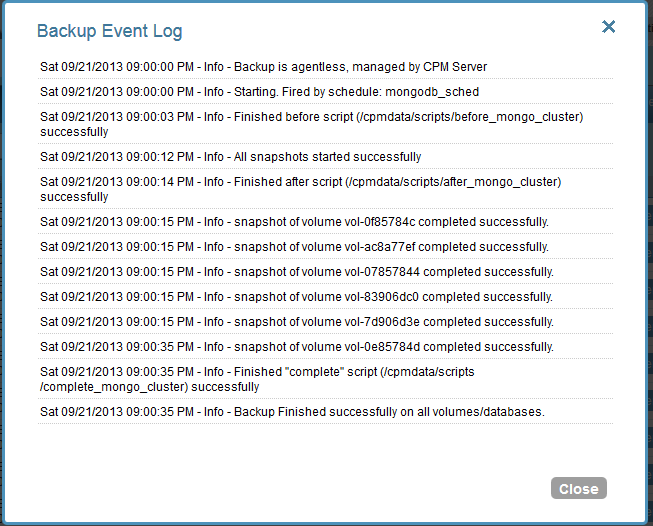
N2W mongodb cluster backup log
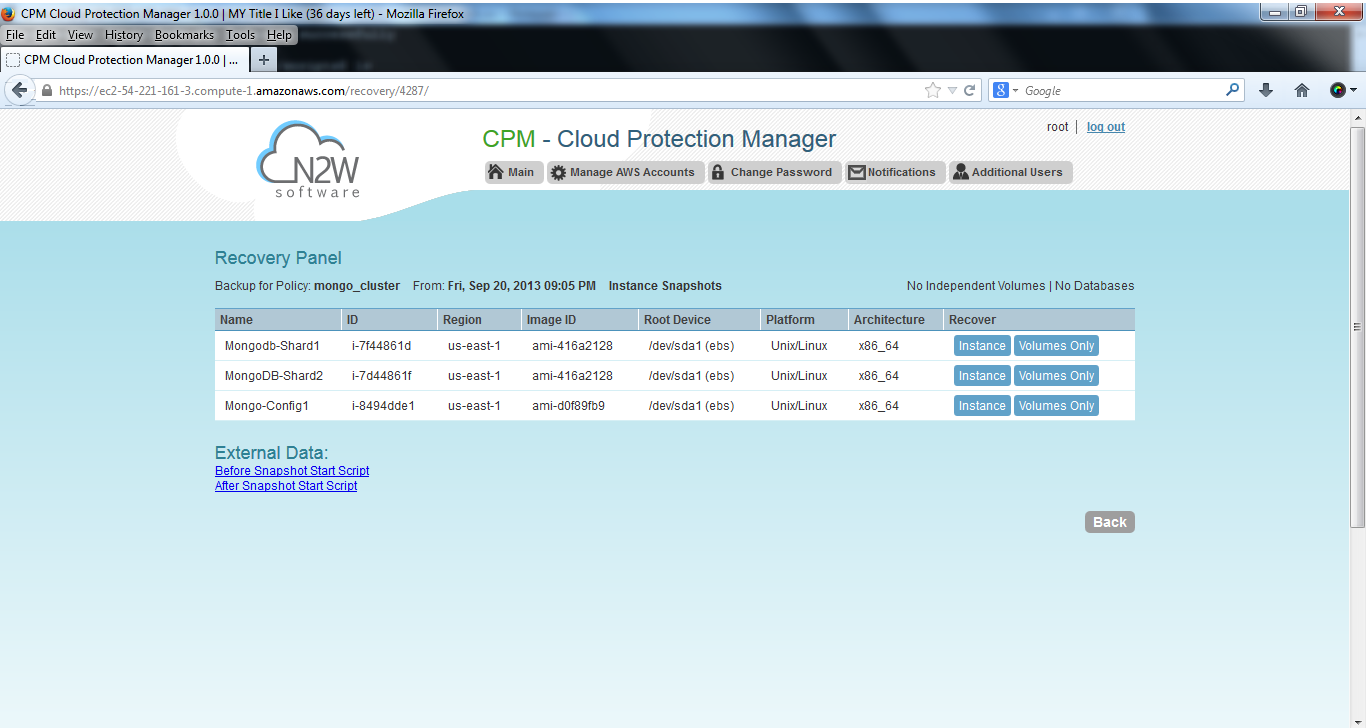
N2W mongodb cluster recovery panel
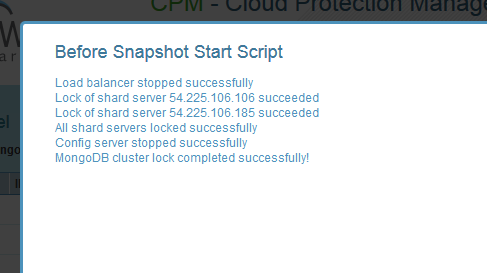
N2W mongodb cluster before output

When testing, please make sure not to leave the cluster locked…
Now all is set and N2WS will take it from here. It started using the scripts and performing backup as scheduled:

Clicking on “Open” in the Log column in the backup monitor screen displays the backup process step by step:

Clicking on the “Recover” button displays the recovery panel screen:

All the instances involved in the backup are shown here. It is possible to recover them, and also to view the output of the backup scripts by clicking on the “External Data” links:

All steps of the MongoDB shard cluster locking scripts are displayed here. If an error occurred, this output can give an insight as to what the issue was.

Recovery:

N2WS allows recovery of complete instances, and it is possible to recover an entire cluster in a matter of minutes. If DR was defined on the backup policy, it is even possible to perform that recovery in another AWS region.
Two things need to be taken into account:

  1. EBS snapshots of the shard servers are taken while the server is locked. When recovered, MongoDB detects the old lock file and refuses to start working, assuming the server crashed before. Of course, this is not a real issue in this case. It can be seen easily in the MongoDB log:> grep “old lock file” /var/log/mongodb/mongodb.log
    > old lock file: /data/mongod.lock.  probably means unclean shutdown,
    > Sat Sep 21 20:10:52 [initandlisten] exception in initAndListen: 12596 old lock file, terminatingThis is easy to fix, but requires performing this manual operation on all shards:  > sudo rm /data/mongod.lock
      > sudo service mongodb start
  2. If you the original addresses of the shard servers are preserved, the cluster will work without any changes. That can be done by using elastic IP addresses, and assigning them to the recovered shard servers (assuming the old cluster is dead). This address association is done in the AWS Management Console; N2WS will not take care of that. When using new addresses, it is required to change the configuration in the config servers for the cluster to start working again.

Conclusion:

It is a short and easy process to define consistent backup of a MongoDB shard cluster using N2WS and backup scripts.
For any comments, feedback, correction or suggestions, you can contact us at info@n2ws.com
Follow N2W Software on LinkedIn
You might also like

the disaster-proof backup & DR checklist

What your backup plan is missing...

Fortify your backup plan across every critical dimension with this checklist.